<?xml version="1.0" encoding="utf-8"?>
<feed xmlns="http://www.w3.org/2005/Atom">
  <title>一叶知秋</title>
  
  <subtitle>个人博客</subtitle>
  <link href="https://tomorrowblog.github.io/atom.xml" rel="self"/>
  
  <link href="https://tomorrowblog.github.io/"/>
  <updated>2026-01-30T13:43:07.008Z</updated>
  <id>https://tomorrowblog.github.io/</id>
  
  <author>
    <name>小明同学</name>
    
  </author>
  
  <generator uri="https://hexo.io/">Hexo</generator>
  
  <entry>
    <title>终极博客搭建术！Docker + Hexo，让你的写作环境“一尘不染”！</title>
    <link href="https://tomorrowblog.github.io/2026/01/30/%E7%BB%88%E6%9E%81%E5%8D%9A%E5%AE%A2%E6%90%AD%E5%BB%BA%E6%9C%AF%EF%BC%81Docker-Hexo%EF%BC%8C%E8%AE%A9%E4%BD%A0%E7%9A%84%E5%86%99%E4%BD%9C%E7%8E%AF%E5%A2%83%E2%80%9C%E4%B8%80%E5%B0%98%E4%B8%8D%E6%9F%93%E2%80%9D%EF%BC%81/"/>
    <id>https://tomorrowblog.github.io/2026/01/30/%E7%BB%88%E6%9E%81%E5%8D%9A%E5%AE%A2%E6%90%AD%E5%BB%BA%E6%9C%AF%EF%BC%81Docker-Hexo%EF%BC%8C%E8%AE%A9%E4%BD%A0%E7%9A%84%E5%86%99%E4%BD%9C%E7%8E%AF%E5%A2%83%E2%80%9C%E4%B8%80%E5%B0%98%E4%B8%8D%E6%9F%93%E2%80%9D%EF%BC%81/</id>
    <published>2026-01-30T13:33:10.000Z</published>
    <updated>2026-01-30T13:43:07.008Z</updated>
    
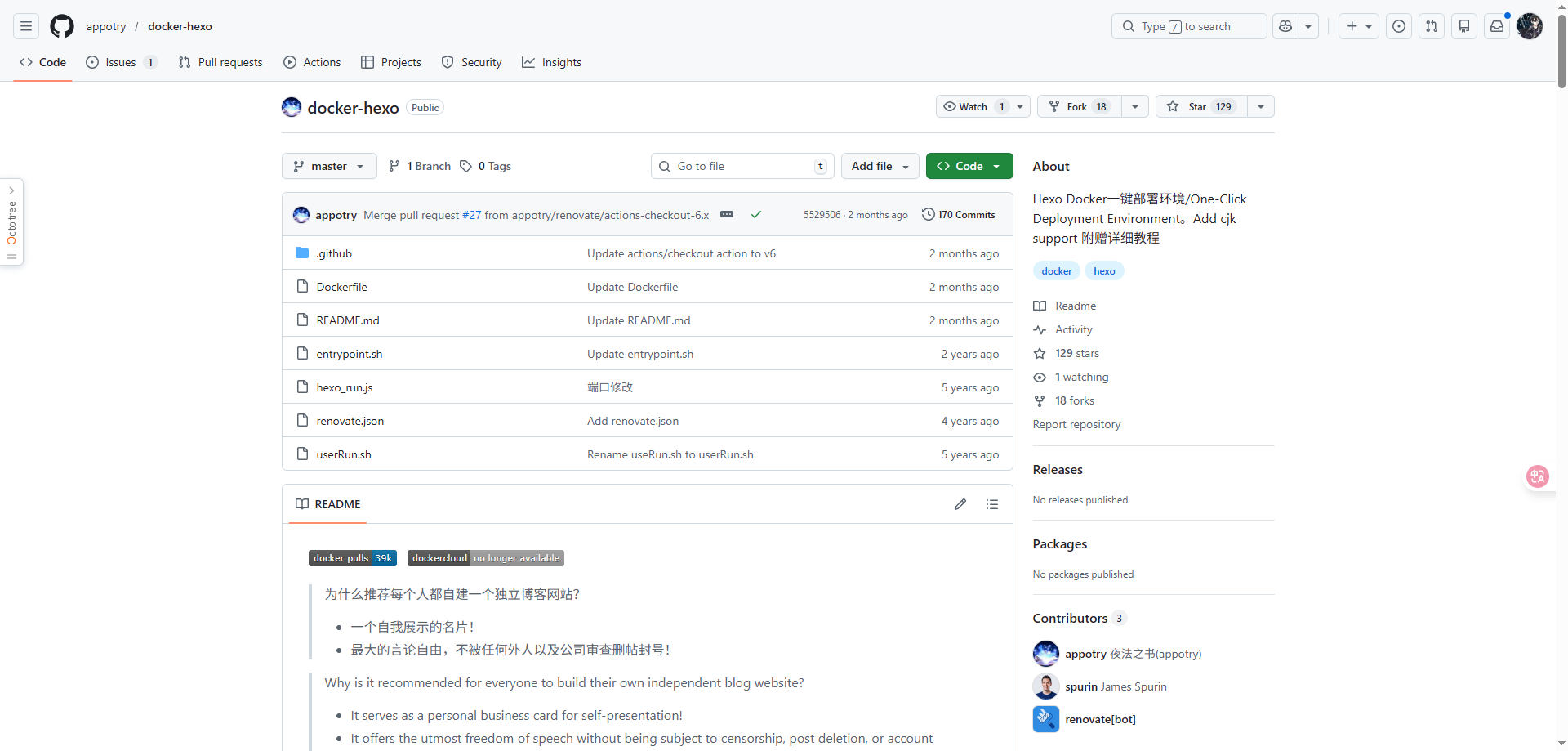
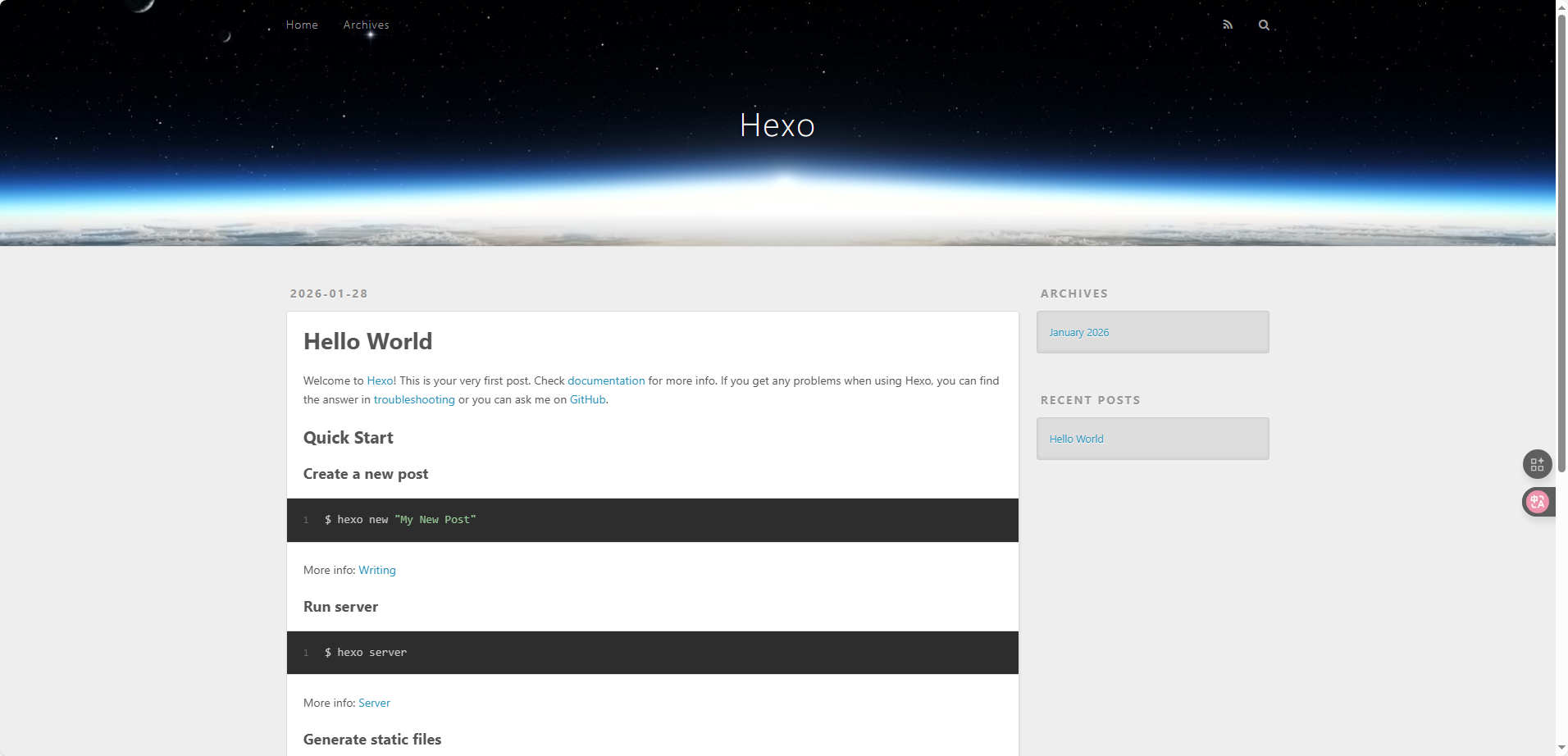
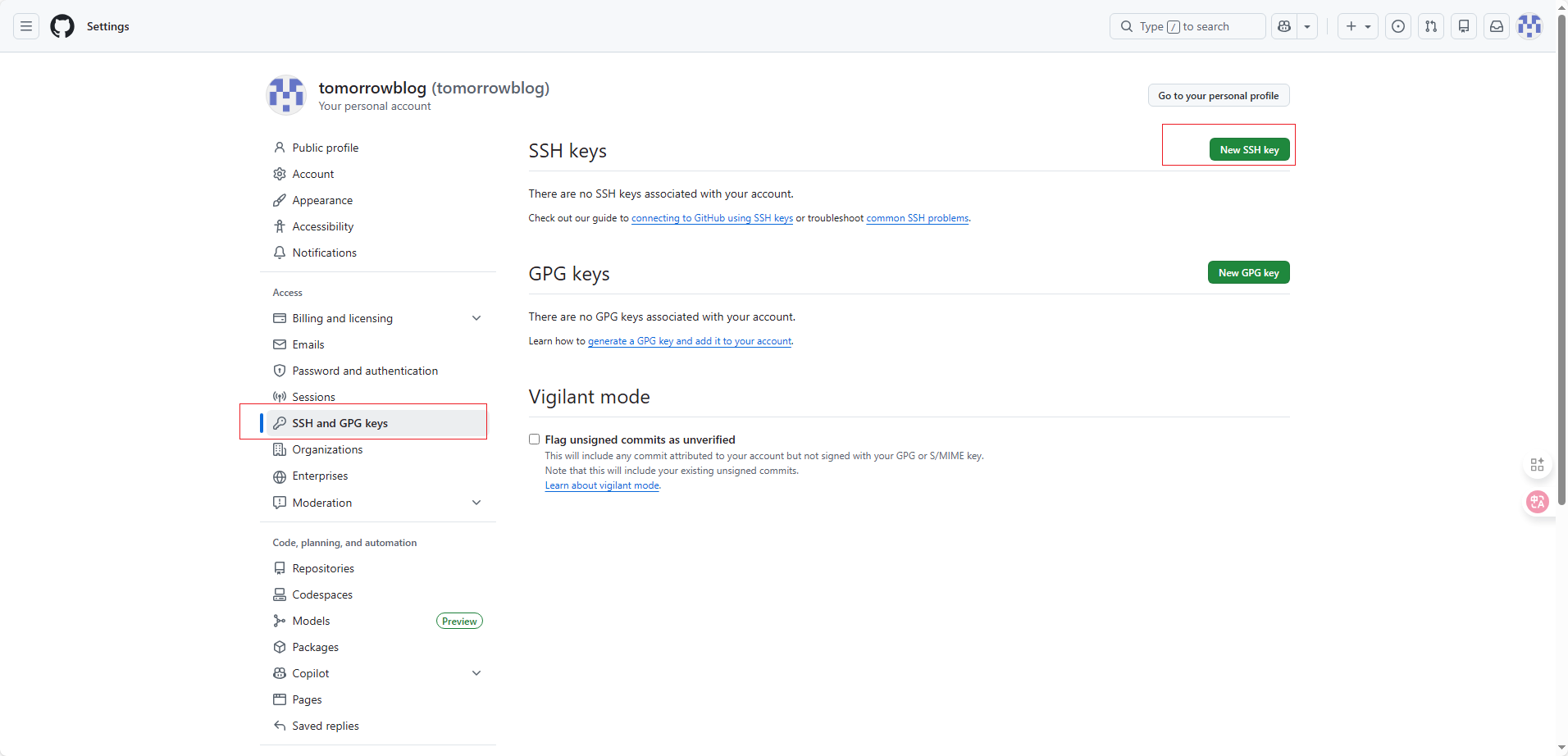
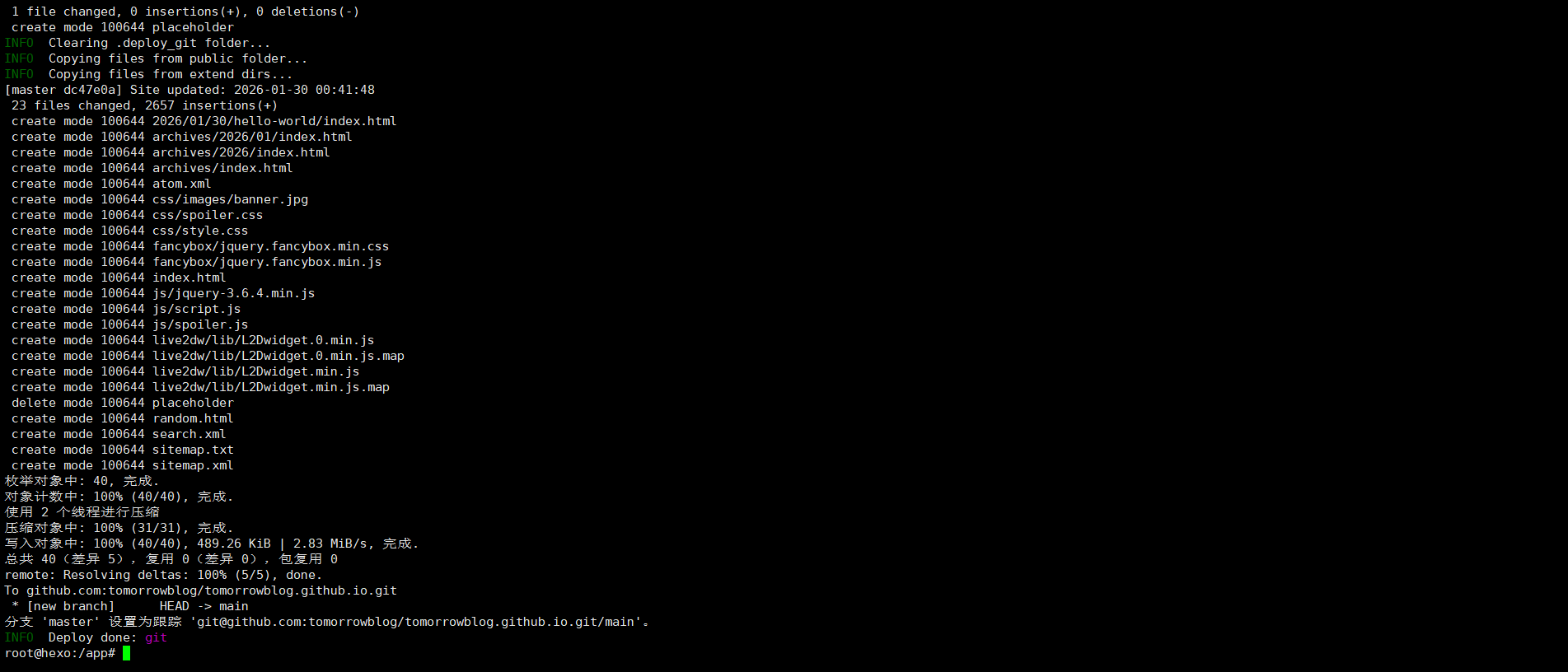
    <content type="html"><![CDATA[<p>大家好，我是小明同学。</p><p>老铁们，你是不是也经历过这样的纠结？</p><p>想写博客，用 Hexo 嘛，确实很香：免费、快速、Markdown 写作。但一想到要在本地电脑上装 Node.js、配置各种环境依赖，甚至还可能遇到版本冲突，就有点头大。尤其是当你换一台电脑，或者想在不同系统上部署，那种“重新配置环境”的痛苦，简直是噩梦！</p><p>“有没有一种办法，能让我享受 Hexo 的丝滑，又不用污染我的本地环境，甚至能实现博客环境的‘随身携带’？”</p><p><strong>有！今天，我就要带你进入一个全新的境界——用 Docker 搭建你的 Hexo 博客！</strong></p><p>这不仅仅是搭建博客，更是搭建一个 <strong>“永不崩溃、环境纯净、可随时迁移”</strong> 的博客工作站！</p><p>使用到的项目地址：<a href="https://github.com/appotry/docker-hexo">https://github.com/appotry/docker-hexo</a><br><img src="https://cdn.jsdelivr.net/gh/jumplooper/images/image/20260128212458982.png" alt="image.png"></p><hr><h3 id="为什么用-Docker-来跑-Hexo？它到底“香”在哪里？"><a href="#为什么用-Docker-来跑-Hexo？它到底“香”在哪里？" class="headerlink" title="为什么用 Docker 来跑 Hexo？它到底“香”在哪里？"></a>为什么用 Docker 来跑 Hexo？它到底“香”在哪里？</h3><p>你可能听过 Docker，知道它是个“容器”技术，但具体怎么用在博客上，又有什么好处呢？</p><p>简单来说，用 Docker 跑 Hexo，就像是给你的 Hexo 博客<strong>量身定制了一个独立的小房间。</strong> 这个房间里，Node.js、Hexo 框架、各种依赖，所有需要的东西都打包在里面，互不干扰。</p><p>它的“香”点，简直是为我们这些懒人、爱折腾又怕麻烦的人量身打造：</p><ol><li><strong>告别“环境地狱”：</strong> 这是最大的优点！你的本地电脑不需要安装 Node.js、npm，甚至是 Hexo-cli！所有这些都运行在 Docker 容器里。从此告别版本冲突、依赖问题，你的本地开发环境保持极致纯净。</li><li><strong>“开箱即用”，一步到位：</strong> Docker 镜像里已经预装好了 Hexo 运行所需的一切。你只需要拉取镜像，启动容器，就能直接开始写博客、生成、部署，省去了大量的环境配置时间。</li><li><strong>多电脑同步，无缝切换：</strong> 无论你在家里的台式机，还是公司的笔记本，甚至是借朋友的电脑，只要装了 Docker，把你的博客项目文件夹一挂载，就能立即进入你的博客工作状态，写作、发布一气呵成。</li><li><strong>环境一致性，永不崩溃：</strong> 容器化保证了每次运行的环境都一模一样，不会因为你本地系统更新、安装了其他软件而导致 Hexo 罢工。你的博客环境，永远稳定如初。</li><li><strong>方便迁移和备份：</strong> 你的博客所有内容（文章、配置、主题）都集中在一个文件夹里。用 Docker 跑，这个文件夹就是你的“宝藏”。备份这个文件夹，就备份了整个博客。迁移起来更是方便，新电脑装 Docker，把文件夹一复制，搞定！</li></ol><p>一句话总结：<strong>Docker 让 Hexo 从“在你电脑上搭建”，变成了“把你的博客环境打包带走”！</strong></p><h3 id="准备工作：就一个！"><a href="#准备工作：就一个！" class="headerlink" title="准备工作：就一个！"></a>准备工作：就一个！</h3><p>你只需要在你的电脑上安装 <strong>Docker</strong>，建议使用linux服务器进行部署。安装教程这里不再赘述，看我之前的文章。</p><p>安装好 Docker，咱们就开始施展魔法了！</p><h3 id="Docker-Hexo-搭建博客：手把手教学！"><a href="#Docker-Hexo-搭建博客：手把手教学！" class="headerlink" title="Docker + Hexo 搭建博客：手把手教学！"></a>Docker + Hexo 搭建博客：手把手教学！</h3><p>我们的核心思路是：<strong>把你的 Hexo 博客文件（文章、主题、配置等）放在本地一个文件夹里，然后把这个文件夹“映射”到 Docker 容器里，让容器内的 Hexo 访问和操作它。</strong> Docker镜像已经内置了hexo和一下常用的插件。</p><p><strong>第一步：部署 Hexo Docker 镜像</strong></p><p><strong>Docker Cli部署：</strong></p><figure class="highlight bash"><table><tbody><tr><td class="gutter"><pre><span class="line">1</span><br><span class="line">2</span><br><span class="line">3</span><br><span class="line">4</span><br><span class="line">5</span><br><span class="line">6</span><br><span class="line">7</span><br></pre></td><td class="code"><pre><span class="line">docker create --name=hexo \</span><br><span class="line">-e HEXO_SERVER_PORT=4000 \</span><br><span class="line">-e GIT_USER=<span class="string">"17lai"</span> \</span><br><span class="line">-e GIT_EMAIL=<span class="string">"17lai@domain.tld"</span> \</span><br><span class="line">-v /mnt/blog:/app \</span><br><span class="line">-p 4000:4000 \</span><br><span class="line">jumploop/hexo</span><br></pre></td></tr></tbody></table></figure><p><strong>docker compose部署</strong></p><blockquote><p>推荐使用 docker compose 来管理docker</p></blockquote><p>docker-compose.yml内容如下：</p><figure class="highlight yaml"><table><tbody><tr><td class="gutter"><pre><span class="line">1</span><br><span class="line">2</span><br><span class="line">3</span><br><span class="line">4</span><br><span class="line">5</span><br><span class="line">6</span><br><span class="line">7</span><br><span class="line">8</span><br><span class="line">9</span><br><span class="line">10</span><br><span class="line">11</span><br><span class="line">12</span><br><span class="line">13</span><br><span class="line">14</span><br><span class="line">15</span><br><span class="line">16</span><br><span class="line">17</span><br><span class="line">18</span><br><span class="line">19</span><br><span class="line">20</span><br><span class="line">21</span><br><span class="line">22</span><br></pre></td><td class="code"><pre><span class="line"><span class="attr">services:</span></span><br><span class="line">  <span class="attr">hexo:</span></span><br><span class="line">    <span class="attr">container_name:</span> <span class="string">hexo</span></span><br><span class="line">    <span class="attr">image:</span> <span class="string">jumploop/hexo:latest</span></span><br><span class="line">    <span class="attr">hostname:</span> <span class="string">hexo</span></span><br><span class="line">    <span class="attr">ports:</span></span><br><span class="line">      <span class="bullet">-</span> <span class="string">"7800:4000"</span></span><br><span class="line">    <span class="attr">volumes:</span></span><br><span class="line">      <span class="bullet">-</span> <span class="string">${USERDIR}/hexo/blog:/app</span></span><br><span class="line">    <span class="attr">env_file:</span></span><br><span class="line">      <span class="bullet">-</span> <span class="string">.env</span>  <span class="comment"># 部分公用环境变量放到这里，以使得多个docker之间共享环境变量</span></span><br><span class="line">    <span class="attr">environment:</span></span><br><span class="line">      <span class="bullet">-</span> <span class="string">PUID=${PUID}</span></span><br><span class="line">      <span class="bullet">-</span> <span class="string">PGID=${PGID}</span></span><br><span class="line">      <span class="bullet">-</span> <span class="string">TZ=${TZ}</span></span><br><span class="line">      <span class="bullet">-</span> <span class="string">GIT_USER="yourName"</span></span><br><span class="line">      <span class="bullet">-</span> <span class="string">GIT_EMAIL="youID@gmail.com"</span></span><br><span class="line">      </span><br><span class="line">      <span class="comment"># 主要为了内部npm网络访问顺利</span></span><br><span class="line">      <span class="comment"># - HTTP_PROXY=http://192.168.0.100:1089</span></span><br><span class="line">      <span class="comment"># - HTTPS_PROXY=http://192.168.0.100:1089</span></span><br><span class="line">    <span class="attr">restart:</span> <span class="string">always</span></span><br></pre></td></tr></tbody></table></figure><p>.env 文件示例</p><figure class="highlight ini"><table><tbody><tr><td class="gutter"><pre><span class="line">1</span><br><span class="line">2</span><br><span class="line">3</span><br><span class="line">4</span><br><span class="line">5</span><br><span class="line">6</span><br><span class="line">7</span><br></pre></td><td class="code"><pre><span class="line"><span class="comment"># Copy this file to .env before building the container.</span></span><br><span class="line"><span class="comment"># Put any local modifications here.</span></span><br><span class="line"></span><br><span class="line"><span class="attr">PUID</span>=<span class="number">1000</span></span><br><span class="line"><span class="attr">PGID</span>=<span class="number">1000</span></span><br><span class="line"><span class="attr">TZ</span>=<span class="string">"Asia/Shanghai"</span></span><br><span class="line"><span class="attr">USERDIR</span>=<span class="string">"/share/Container"</span></span><br></pre></td></tr></tbody></table></figure><p><strong>环境变量</strong></p><table><thead><tr><th>环境变量</th><th>作用</th></tr></thead><tbody><tr><td>HEXO_SERVER_PORT</td><td>pm2 http 服务器运行端口，默认是4000</td></tr><tr><td>GIT_USER</td><td>git 环境变量用户名</td></tr><tr><td>GIT_EMAIL</td><td>git 环境变量邮箱</td></tr><tr><td>创建好博客目录，修改好配置，执行下面命令，进行部署</td><td></td></tr></tbody></table><figure class="highlight plaintext"><table><tbody><tr><td class="gutter"><pre><span class="line">1</span><br></pre></td><td class="code"><pre><span class="line">docker compose up -d</span><br></pre></td></tr></tbody></table></figure><p>浏览器输入http://你的服务器IP:4000，就可以看到博客页面了<br><img src="https://cdn.jsdelivr.net/gh/jumplooper/images/image/20260128222254598.png" alt="image.png"></p><p><strong>第二步： ssh key 部署</strong></p><p><strong>Docker会自动随机生成ssh key</strong>&nbsp;在 /app/.ssh 目录下面。自动部署请把ssh key添加到github 等平台。</p><blockquote><ol><li>将<strong>SSH</strong>&nbsp;公钥复制到剪贴板。 </li><li>在任何页面的右上角，单击您的个人资料照片，然后单击Settings（设置）。</li><li>在用户设置侧边栏中，单击<strong>SSH</strong>&nbsp;and GPG keys（<strong>SSH</strong>&nbsp;和GPG 密钥）。</li><li>单击New&nbsp;<strong>SSH</strong>&nbsp;key（新<strong>SSH</strong>&nbsp;密钥）或Add&nbsp;<strong>SSH</strong>&nbsp;key（添加<strong>SSH</strong>&nbsp;密钥）。</li></ol></blockquote><p><img src="https://cdn.jsdelivr.net/gh/jumplooper/images/image/20260128222941202.png" alt="image.png"><br><img src="https://cdn.jsdelivr.net/gh/jumplooper/images/image/20260128215216358.png"><br> <strong>进入docker</strong></p><figure class="highlight shell"><table><tbody><tr><td class="gutter"><pre><span class="line">1</span><br></pre></td><td class="code"><pre><span class="line">docker exec -it hexo bash</span><br></pre></td></tr></tbody></table></figure><p>然后就可以正常运行hexo的各种命令了，是不是非常简单？ 快来试试吧。</p><p><strong>第三步：发布到互联网（GitHub Pages / Gitee Pages）</strong></p><p><strong>准备工作：</strong><br>1.<strong>注册 GitHub 账号：</strong>&nbsp;如果你还没有，赶紧去&nbsp;<a href="https://github.com/">github.com</a>&nbsp;注册一个。<br>2.<strong>创建新仓库：</strong>&nbsp;在 GitHub 上创建一个新的仓库 (Repository)，<strong>仓库名称必须是&nbsp;<code>你的GitHub用户名.github.io</code></strong>&nbsp;(例如，如果你的用户名是&nbsp;<code>zhangsan</code>，那么仓库名就是&nbsp;<code>zhangsan.github.io</code>)。</p><p><strong>部署</strong><br>如果你想把博客部署到 GitHub Pages 或 Gitee Pages，你需要配置 <code>_config.yml</code> 文件，并安装 <code>hexo-deployer-git</code> 插件。<br>1.<strong>安装部署插件：</strong><br>镜像已经内置该插件，可以不用再安装</p><figure class="highlight bash"><table><tbody><tr><td class="gutter"><pre><span class="line">1</span><br></pre></td><td class="code"><pre><span class="line">cnpm install hexo-deployer-git --save</span><br></pre></td></tr></tbody></table></figure><p>2.<strong>配置 <code>_config.yml</code>：</strong><br>打开你本地博客文件夹里的 <code>_config.yml</code> 文件，拉到最底部，修改 <code>deploy:</code> 部分。例如部署到 GitHub Pages：</p><figure class="highlight yaml"><table><tbody><tr><td class="gutter"><pre><span class="line">1</span><br><span class="line">2</span><br><span class="line">3</span><br><span class="line">4</span><br></pre></td><td class="code"><pre><span class="line"><span class="attr">deploy:</span></span><br><span class="line">    <span class="attr">type:</span> <span class="string">git</span></span><br><span class="line">    <span class="attr">repo:</span> <span class="string">git@github.com:你的GitHub用户名/你的GitHub用户名.github.io.git</span> <span class="comment"># 替换成你自己的仓库地址</span></span><br><span class="line">    <span class="attr">branch:</span> <span class="string">master</span> <span class="comment"># 或者 main，取决于你的 GitHub 仓库默认分支名</span></span><br></pre></td></tr></tbody></table></figure><p>保存文件。</p><p>3.<strong>生成并部署！</strong></p><figure class="highlight bash"><table><tbody><tr><td class="gutter"><pre><span class="line">1</span><br></pre></td><td class="code"><pre><span class="line">hexo clean &amp;&amp; hexo generate &amp;&amp; hexo deploy</span><br></pre></td></tr></tbody></table></figure><p><img src="https://cdn.jsdelivr.net/gh/jumplooper/images/image/20260130004816803.png" alt="image.png"></p><p>稍等片刻，你的博客就上线了！访问 <code>https://你的GitHub用户名.github.io</code> 就能看到。<br><img src="https://cdn.jsdelivr.net/gh/jumplooper/images/image/20260130004534161.png" alt="image.png"></p><h3 id="怎么写文章？"><a href="#怎么写文章？" class="headerlink" title="怎么写文章？"></a>怎么写文章？</h3><p>你只需要在你本地博客文件夹的 <code>source/_posts</code> 目录下，用 Markdown 格式创建新的 <code>.md</code> 文件即可。</p><p>比如，在你的本地博客文件夹里，执行：</p><figure class="highlight bash"><table><tbody><tr><td class="gutter"><pre><span class="line">1</span><br><span class="line">2</span><br><span class="line">3</span><br><span class="line">4</span><br></pre></td><td class="code"><pre><span class="line"><span class="comment"># 注意，这里我们直接在本地创建文件，因为 Hexo 的新文章命令会直接操作文件系统，</span></span><br><span class="line"><span class="comment"># 而我们已经把本地文件夹映射到了容器内，所以直接在本地操作即可。</span></span><br><span class="line"><span class="comment"># 如果你想用容器内的 hexo new 命令，也可以：</span></span><br><span class="line">hexo new post <span class="string">"我的Docker Hexo初体验"</span></span><br></pre></td></tr></tbody></table></figure><p>然后用你喜欢的编辑器打开 <code>source/_posts/我的Docker Hexo初体验.md</code>，开始你的写作！</p><p>hexo 支持实时预览修改效果，文章主题的修改，都可以通过web服务立刻看到效果。</p><p>如果你发现了修改没有立刻生效，可能是 node 缓存还在，可以使用下面方法重启 web 服务</p><figure class="highlight shell"><table><tbody><tr><td class="gutter"><pre><span class="line">1</span><br><span class="line">2</span><br><span class="line">3</span><br><span class="line">4</span><br><span class="line">5</span><br></pre></td><td class="code"><pre><span class="line"><span class="meta prompt_"># </span><span class="language-bash">重启 pm2</span></span><br><span class="line">pm2 restart /hexo_run.js</span><br><span class="line"><span class="meta prompt_"></span></span><br><span class="line"><span class="meta prompt_"># </span><span class="language-bash">重启 hexo docker</span></span><br><span class="line">docker restart hexo</span><br></pre></td></tr></tbody></table></figure><p>写完后，确认无误后，重复<strong>第三步</strong>的部署命令即可发布。然后通过访问 <code>https://你的GitHub用户名.github.io</code> 就能看到最新的修改。</p><h3 id="总结：Docker-Hexo，让你的博客之路“一劳永逸”！"><a href="#总结：Docker-Hexo，让你的博客之路“一劳永逸”！" class="headerlink" title="总结：Docker + Hexo，让你的博客之路“一劳永逸”！"></a>总结：Docker + Hexo，让你的博客之路“一劳永逸”！</h3><p>用 Docker 运行 Hexo，可能初看起来比直接安装 Hexo 稍微多一步，但它带来的<strong>环境隔离、一致性、以及无与伦比的便捷性</strong>，绝对是值得的！</p><p>从此，你的博客环境不再受本地电脑的“污染”，无论你在哪里，都能随时随地、优雅地写作和发布。这不仅仅是搭建博客，更是搭建了一个<strong>高效、稳定、可移植的个人内容发布系统！</strong></p><p>所以，别再犹豫了！赶紧动手，用 Docker 打造你的专属 Hexo 博客工作站吧！你会发现，它的“真香”程度，远超你的想象！</p><p>觉得这个教程有用？别忘了点赞、转发给身边想写博客的朋友们！咱们下期再见！👋</p><p><img src="https://cdn.jsdelivr.net/gh/jumplooper/images/image/20250622174948598.png" alt="扫码_搜索联合传播样式-标准色版.png"></p><h2 id="📚-往期推荐"><a href="#📚-往期推荐" class="headerlink" title="📚 往期推荐"></a>📚 往期推荐</h2><ul><li><a href="https://mp.weixin.qq.com/s/JiKMFWZ3cFOEw0qkt9DDog?token=1758346064&amp;lang=zh_CN">还在傻傻手敲测试数据？这个&nbsp;Python&nbsp;库让你一键生成“整个世界” </a></li><li><a href="https://mp.weixin.qq.com/s/0DqUvCh0JJ5RVZmW7FYzdw?token=1758346064&amp;lang=zh_CN">别再本地&nbsp;docker&nbsp;build&nbsp;了！教你用&nbsp;GitHub&nbsp;Actions&nbsp;搭建全自动流水线，真香 </a></li><li><a href="https://mp.weixin.qq.com/s/goRgPToK1gA9C29DPIT6Og?token=1758346064&amp;lang=zh_CN">别再死磕命令行了，Dockge&nbsp;才是&nbsp;Docker&nbsp;Compose&nbsp;的正确打开方式 </a></li><li><a href="https://mp.weixin.qq.com/s/RFPCFaw4vYroRIkRWmSeEQ?token=883050029&amp;lang=zh_CN">告别简陋！打造高颜值&nbsp;NAS&nbsp;导航面板：Sun-Panel&nbsp;实战教程 </a></li><li><a href="https://mp.weixin.qq.com/s/ruaV9SSjbUPl5QDmA0-YmA?token=1036406607&amp;lang=zh_CN">it-tools：程序员的瑞士军刀，你的在线工具箱！</a></li><li><a href="https://mp.weixin.qq.com/s/S6AMdk0g0AtbLNTR9PgqUg?token=1036406607&amp;lang=zh_CN">连续登顶&nbsp;GitHub&nbsp;的信息聚合神器：Follow，让你不再错过任何重要信息！ </a></li><li><a href="https://mp.weixin.qq.com/s/czZqdowqKneymHU12PauDw?token=1758346064&amp;lang=zh_CN">每天&nbsp;5&nbsp;分钟，刷完互联网最硬核的技术干货，我是怎么做到的？ </a></li><li><a href="https://mp.weixin.qq.com/s/BZDHUP0683jOLiyzkKXYBA?token=1758346064&amp;lang=zh_CN">卸载掉你那堆带广告的转换器吧，有一个&nbsp;VERT&nbsp;就够了 </a></li><li><a href="https://mp.weixin.qq.com/s/5hgAou0jlwgMldSdPkfKDg?token=1758346064&amp;lang=zh_CN">告别前端！Gradio：Pythoner专属的机器学习模型部署神器，秒建交互式Demo！ </a></li><li><a href="https://mp.weixin.qq.com/s/Lb_c0kIW-i8DBrwGk7kN0w?token=1758346064&amp;lang=zh_CN">在&nbsp;Obsidian&nbsp;中高效整合&nbsp;DeepSeek&nbsp;的完整指南：Smart&nbsp;Composer&nbsp;助你笔记起飞！ </a><br><img src="https://cdn.jsdelivr.net/gh/jumplooper/images/image/20250622174712774.jpg" alt="qrcode_for_gh_59860c4bae2d_430.jpg"></li></ul><script type="text&#x2F;javascript" src="https://unpkg.com/kity@2.0.4/dist/kity.min.js"></script><script type="text&#x2F;javascript" src="https://unpkg.com/kityminder-core@1.4.50/dist/kityminder.core.min.js"></script><script defer="true" type="text&#x2F;javascript" src="https://unpkg.com/hexo-simple-mindmap@0.8.0/dist/mindmap.min.js"></script><link rel="stylesheet" type="text&#x2F;css" href="https://unpkg.com/hexo-simple-mindmap@0.8.0/dist/mindmap.min.css"><link rel="stylesheet" href="/css/spoiler.css" type="text/css"><script src="/js/spoiler.js" type="text/javascript" async></script>]]></content>


    <summary type="html">&lt;p&gt;大家好，我是小明同学。&lt;/p&gt;
&lt;p&gt;老铁们，你是不是也经历过这样的纠结？&lt;/p&gt;
&lt;p&gt;想写博客，用 Hexo 嘛，确实很香：免费、快速、Markdown 写作。但一想到要在本地电脑上装 Node.js、配置各种环境依赖，甚至还可能遇到版本冲突，就有点头大。尤其是当你换一</summary>


    <category term="docker  blog" scheme="https://tomorrowblog.github.io/tags/docker-blog/"/>
    
  </entry>
  
  <entry>
    <title>Hello World</title>
    <link href="https://tomorrowblog.github.io/2026/01/30/hello-world/"/>
    <id>https://tomorrowblog.github.io/2026/01/30/hello-world/</id>
    <published>2026-01-29T16:37:14.176Z</published>
    <updated>2026-01-29T16:41:44.655Z</updated>
    
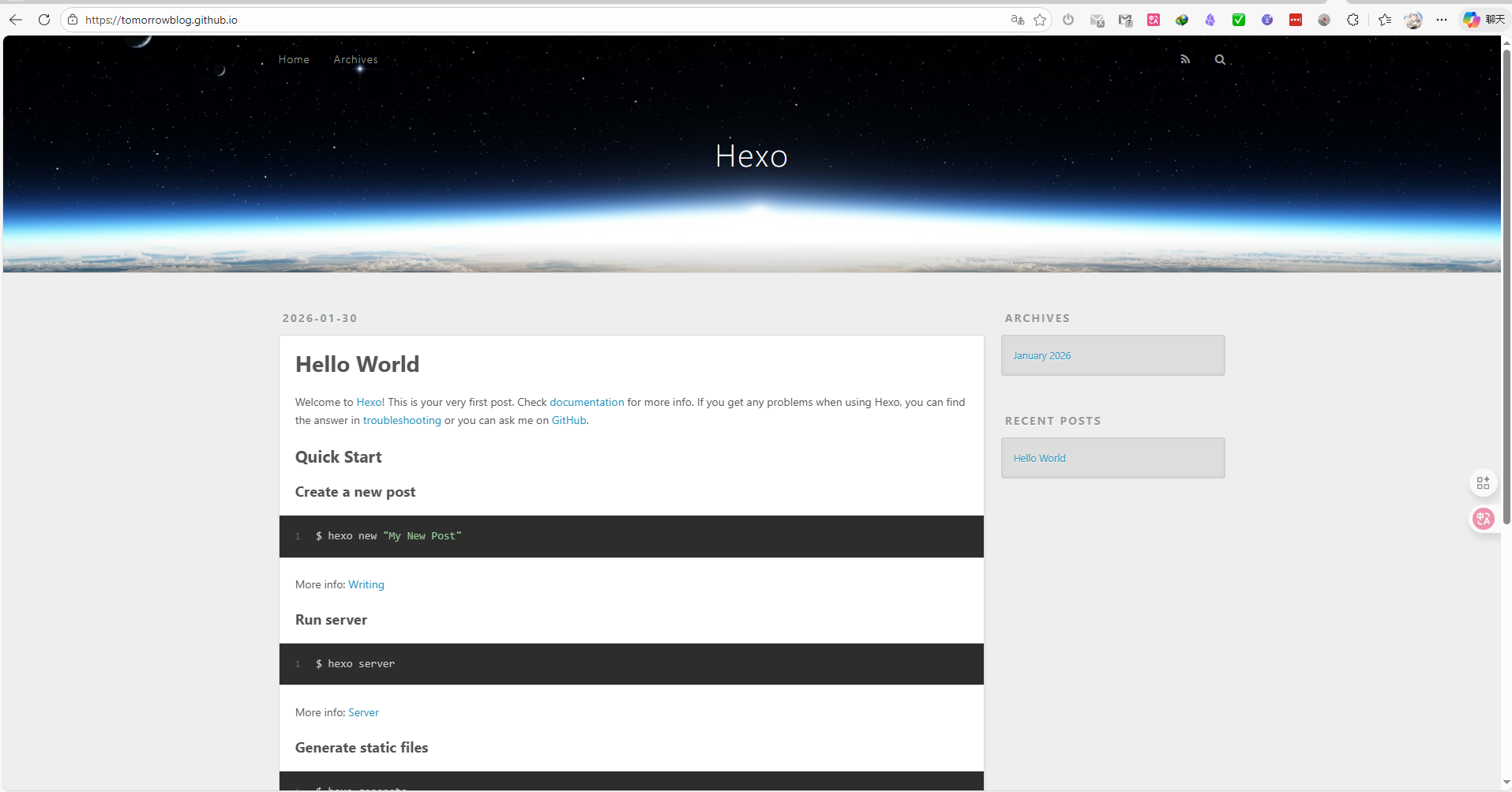
    <content type="html"><![CDATA[<p>Welcome to <a href="https://hexo.io/">Hexo</a>! This is your very first post. Check <a href="https://hexo.io/docs/">documentation</a> for more info. If you get any problems when using Hexo, you can find the answer in <a href="https://hexo.io/docs/troubleshooting.html">troubleshooting</a> or you can ask me on <a href="https://github.com/hexojs/hexo/issues">GitHub</a>.</p><h2 id="Quick-Start"><a href="#Quick-Start" class="headerlink" title="Quick Start"></a>Quick Start</h2><h3 id="Create-a-new-post"><a href="#Create-a-new-post" class="headerlink" title="Create a new post"></a>Create a new post</h3><figure class="highlight bash"><table><tbody><tr><td class="gutter"><pre><span class="line">1</span><br></pre></td><td class="code"><pre><span class="line">$ hexo new <span class="string">"My New Post"</span></span><br></pre></td></tr></tbody></table></figure><p>More info: <a href="https://hexo.io/docs/writing.html">Writing</a></p><h3 id="Run-server"><a href="#Run-server" class="headerlink" title="Run server"></a>Run server</h3><figure class="highlight bash"><table><tbody><tr><td class="gutter"><pre><span class="line">1</span><br></pre></td><td class="code"><pre><span class="line">$ hexo server</span><br></pre></td></tr></tbody></table></figure><p>More info: <a href="https://hexo.io/docs/server.html">Server</a></p><h3 id="Generate-static-files"><a href="#Generate-static-files" class="headerlink" title="Generate static files"></a>Generate static files</h3><figure class="highlight bash"><table><tbody><tr><td class="gutter"><pre><span class="line">1</span><br></pre></td><td class="code"><pre><span class="line">$ hexo generate</span><br></pre></td></tr></tbody></table></figure><p>More info: <a href="https://hexo.io/docs/generating.html">Generating</a></p><h3 id="Deploy-to-remote-sites"><a href="#Deploy-to-remote-sites" class="headerlink" title="Deploy to remote sites"></a>Deploy to remote sites</h3><figure class="highlight bash"><table><tbody><tr><td class="gutter"><pre><span class="line">1</span><br></pre></td><td class="code"><pre><span class="line">$ hexo deploy</span><br></pre></td></tr></tbody></table></figure><p>More info: <a href="https://hexo.io/docs/one-command-deployment.html">Deployment</a></p><script type="text&#x2F;javascript" src="https://unpkg.com/kity@2.0.4/dist/kity.min.js"></script><script type="text&#x2F;javascript" src="https://unpkg.com/kityminder-core@1.4.50/dist/kityminder.core.min.js"></script><script defer="true" type="text&#x2F;javascript" src="https://unpkg.com/hexo-simple-mindmap@0.8.0/dist/mindmap.min.js"></script><link rel="stylesheet" type="text&#x2F;css" href="https://unpkg.com/hexo-simple-mindmap@0.8.0/dist/mindmap.min.css"><link rel="stylesheet" href="/css/spoiler.css" type="text/css"><script src="/js/spoiler.js" type="text/javascript" async></script>]]></content>


    <summary type="html">&lt;p&gt;Welcome to &lt;a href=&quot;https://hexo.io/&quot;&gt;Hexo&lt;/a&gt;! This is your very first post. Check &lt;a href=&quot;https://hexo.io/docs/&quot;&gt;documentation&lt;/a&gt; for</summary>


  </entry>
  
</feed>